
Computational Resources (VMs)#
Virtual Machines (VMs) in the Secure Data Enclave (SDE) provide the processing power needed to run analyses, build models, and work with data securely. VMs run Ubuntu Linux and are pre-configured with standard research software. They have attached local storage, as well as access to storage buckets in the SDE environment.
VMs are part of the Google Cloud Compute Engine service.
See the SDE User Guide for details on connecting to and using VMs.
VM Availability#
VMs are available in the following projects:
Project |
Available to |
Purpose |
Compute availability |
|---|---|---|---|
Controlled data transfer into the SDE via SFTP or allowlisted web portals. Globus transfers go directly to the Ingress bucket and do not require the Ingress VM. |
Single VM for all data ingress tasks. |
||
Data cleaning, curation, and management. Data analysis by Data Engineers. |
1 VM by default; additional VMs can be requested. |
||
General research tasks and data analysis. |
1 VM per Workspace Project. Additional VMs can be requested. |
Using VMs#
VMs have no direct internet access. R, Python, and other packages cannot be installed directly by users. See Available Software for information on pre-installed software and the process for adding additional packages.
VMs come with persistent local storage, but it is not backed up automatically. Important files should be saved to a storage bucket.
A Data Engineer manages VM configuration and can request additional CPU, memory, or storage if needed.
Access and permissions are centrally managed to maintain compliance with NIST SP 800-171 and institutional requirements. VM usage is billed by the hour while running, including idle time. Start your VM when ready to work and stop it when finished. Attached storage persists when a VM is stopped, allowing files to be used across multiple sessions. When a VM is deleted, all files on the attached storage are also deleted.
Users can start and stop VMs through the Google Cloud Console . Users connect to VMs using SSH-in-browser or through remote desktop applications. See Using VMs in the SDE User Guide.
Best practices
Always stop your VM when you finish your workday. This preserves resources and maintains security.
Store results or large datasets in storage buckets, not on attached VM storage.
Back up any files you want to keep to a storage bucket before requesting software updates — VM recreation deletes attached storage.
Available VM Types#
The SDE provides a standard VM configuration (E2-Standard-8) suitable for most research and data analysis tasks by default. Additional VM types can be requested for projects requiring more computational power, memory, or GPU capabilities.
VM Type |
CPU |
Memory (GB) |
Typical use case |
Availability |
|---|---|---|---|---|
E2-Standard-8 |
8 |
32 |
General data analysis, R/Python workloads, Jupyter notebooks |
Default |
E2-Standard-4 |
4 |
16 |
Lightweight processing, scripting, or testing |
Optional |
N2-Highmem-16 |
16 |
128 |
Memory-intensive computations, large datasets |
By request |
N2-Highcpu-64 |
64 |
64 |
CPU-heavy workloads, simulation, and parallel processing |
By request |
Checking your VM configuration#
Northwestern IT configures VMs based on requirements submitted at environment setup. To identify your VM type:
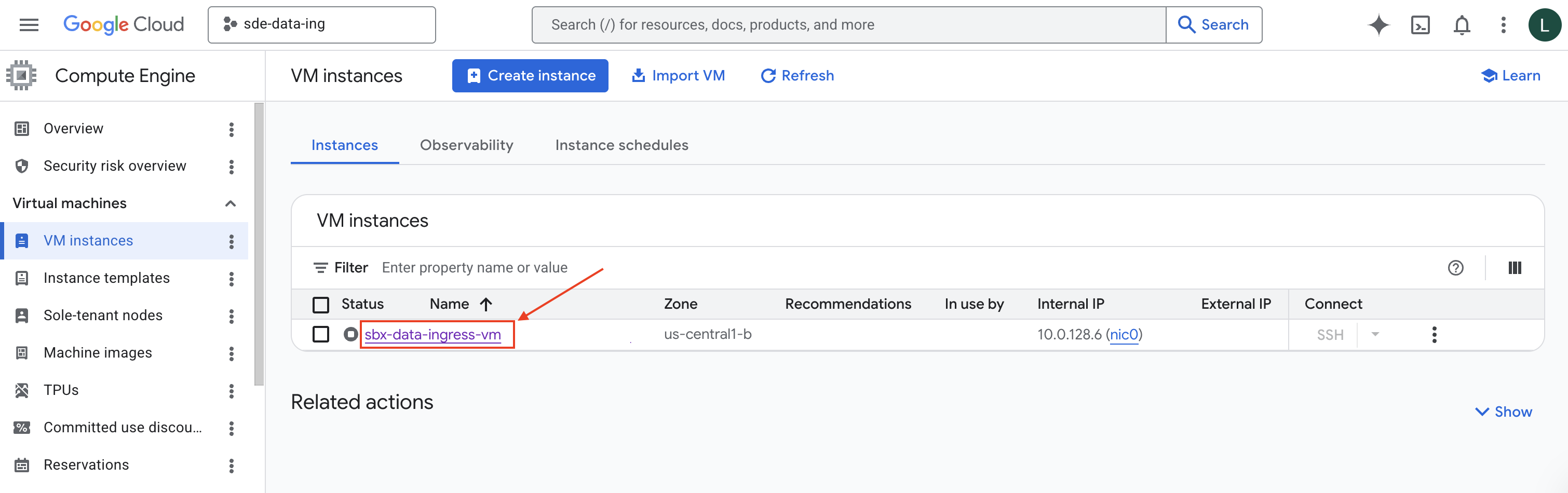
Go to the Google Cloud Console VM Instances page .
Confirm the correct project is selected in the project dropdown.

Click the VM name to open the details page.
Under the Machine configuration section, you will see the VM type.

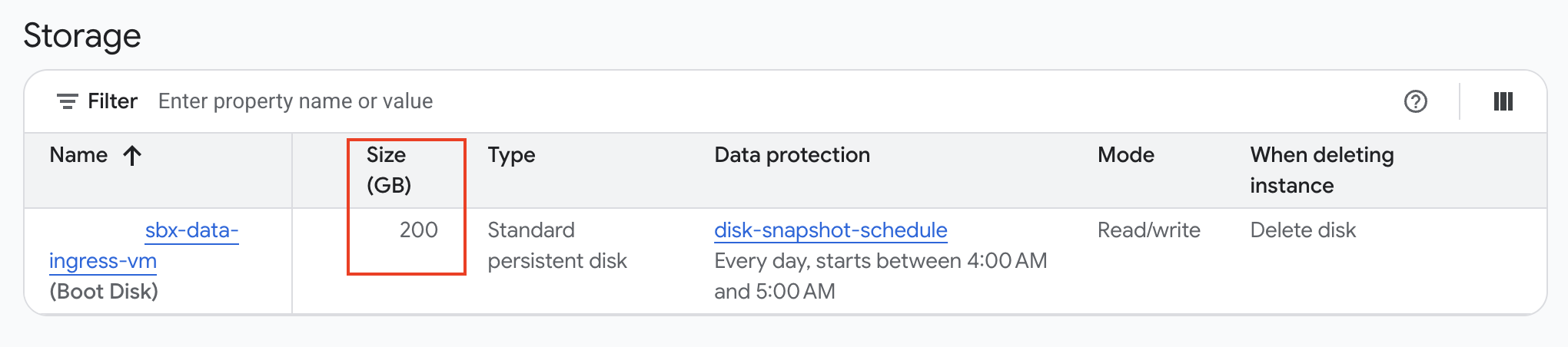
Under the Storage section, the persistent disk size is shown.
Available Software#
Connections from SDE VMs to the internet are tightly controlled and blocked for most resources. VMs include pre-installed software and libraries for data analysis, statistics, development, and document creation.
Additional software, packages, and libraries can be added via request to Northwestern IT. When new software is added, VMs must be recreated, which deletes all files on attached VM storage. Save all important data to a storage bucket before requesting software updates.
IDEs and Notebooks#
Tool |
Description |
|---|---|
RStudio |
Full-featured IDE for R development, data visualization, and reporting. |
JupyterLab |
Web-based notebook interface for Python, R, and Julia. Supports interactive analysis and inline visualizations. |
Visual Studio Code |
General-purpose code editor with support for Python, R, and most other languages. Includes debugging, Git integration, and extensions. |
Web Browser#
Google Chrome
Office and Productivity#
LibreOffice Suite: Writer (Documents), Calc (Spreadsheets), Impress (Presentations), Draw (Diagrams/Graphics), Base (Databases), Math (Formulas)
Development Tools#
GCC and Fortran compilers, CMake, Make, git, pkg-config, autotools
R Packages#
Category |
Packages |
|---|---|
Data analysis |
tidyverse, data.table |
Statistics and modeling |
survival, lme4, mgcv |
Machine learning |
randomForest, xgboost, glmnet |
Bayesian analysis |
rstan, brms |
Geospatial |
sf, terra, spatstat |
Visualization |
ggplot2, plotly, rgl |
Web apps and dashboards |
shiny, shinydashboard, shinyWidgets |
Reporting |
bookdown, rmarkdown, flextable, gtsummary |
Additional R packages can be installed via request to Northwestern IT.
Python Packages#
Category |
Packages |
|---|---|
Data |
pandas, polars, numpy, pyarrow |
Statistics |
scipy, statsmodels |
Machine learning |
scikit-learn, xgboost, lightgbm |
Deep learning |
tensorflow, theano |
NLP |
nltk, spacy |
Visualization |
matplotlib, plotly, bokeh |
Images and OCR |
Pillow, scikit-image, pytesseract |
Geospatial |
geopandas, shapely |
Networks |
networkx |
HTML processing |
beautifulsoup4 |
Additional Python libraries can be installed via request to Northwestern IT.