
Granting Access to an Amazon S3 Bucket Using Access Keys#
When you create an Amazon S3 bucket in Amazon Web Services (AWS), default access to that bucket is limited to those who have access to the AWS account in which the bucket was created. AWS provides an Identity and Access Management (IAM) service that allows you to securely grant users that do not have access to this AWS account access to specific resources, including S3 buckets. Some applications, like Globus, require an access key to work with the contents of the S3 bucket.
This tutorial covers how to create access keys to grant access to an S3 bucket by:
The instructions below walk you through this process using the AWS Management Console.
Access Key Best Practices#
Access keys provide long-term access to resources in AWS. AWS is encouraging users to transition away from using this type of credential. However, some applications, like Globus, still require their use. Access keys are safe to use as long as you manage the credential securely and revoke access to keys that are no longer in use.
When using access keys, please follow these best practices.
Do not hard code or directly put access codes in code files.
Do not upload credentials to GitHub repositories, even if they are private.
Store access credentials in a password manager.
Disable or delete access key when no longer needed.
Enable least-privilege permissions.
Rotate access keys regularly.
For more details about managing access keys, see Amazon’s best practices for managing AWS access keys .
Prerequisites#
To complete this tutorial, you must be able to create users, policies, and access keys and apply policies using the AWS IAM console. Those with administrator access to the account will be able to perform these actions.
To see if you have administrator access, log in to AWS with your Northwestern Account.
If you see a permission set called AWSAdministratorAccess, you have administrator access and can complete this tutorial.
If you see another permission set, you may or may not be able to complete the tutorial. Feel free to try to follow along. If you can’t perform any of the steps, contact the owner of the AWS account to see if you can be given permissions to create IAM users.
Create Permissions#
To grant access to your S3 bucket, you must first create an IAM Policy that specifies what actions can be performed on which buckets.
To create an IAM policy:
Navigate to the IAM Dashboard .
Click Policies in the left navigation menu and then click the blue Create Policy button.
You will see the Policy Editor window. Policies can be written with two methods: the Visual editor or a JSON template. We recommend using one of the following JSON templates for the pre-defined use cases below.
To create a policy using a JSON template:
Select the JSON option under Policy editor.
Paste the JSON template that fits your use case into the text box.
Replace YOUR-BUCKET-NAME with the name of your S3 bucket.
Click Next.
Enter a policy name on the next page. Use a descriptive name like “globus-BUCKETNAME-access” or “archive-BUCKETNAME”.
Enter a description for this policy. You can use the descriptions given in the examples below.
Click Create policy.
This policy allows read-only access to files in a specified bucket. Specifically, it allows someone with the IAM user credentials or access key to list the names of and read the contents of all the files in the specified bucket.
{
    "Version": "2012-10-17",
    "Statement": [
        {
            "Sid": "readonly",
            "Effect": "Allow",
            "Action": [
                "s3:Get*",
                "s3:List*"
            ],
            "Resource": [
                "arn:aws:s3:::YOUR_BUCKET_NAME",
                "arn:aws:s3:::YOUR_BUCKET_NAME/*"
            ]
        }
    ]
}
This policy provides read-write access to a specified bucket.
Specifically, it allows someone with the IAM user credentials or access key to read, write, and delete files in the specified bucket, and manage multipart uploads for large files. This set of permissions allows someone to transfer files to and from the bucket.
{
    "Version": "2012-10-17",
    "Statement": [
        {
            "Sid": "ReadWriteDelete",
            "Effect": "Allow",
            "Action": [
                "s3:Get*",
                "s3:List*",
                "s3:PutObject",
                "s3:DeleteObject",
                "s3:AbortMultipartUpload"
            ],
            "Resource": [
                "arn:aws:s3:::YOUR_BUCKET_NAME/*",
                "arn:aws:s3:::YOUR_BUCKET_NAME"
            ]
        }
    ]
}
This policy is intended for use with the Northwestern Amazon S3 Globus collection. It will let those with the IAM user credentials or access key transfer data to and from the S3 bucket specified in the policy (YOUR-BUCKET-NAME-HERE).
{
    "Version": "2012-10-17",
    "Statement": [
        {
            "Sid": "ListAllBuckets",
            "Effect": "Allow",
            "Action": [
                "s3:ListAllMyBuckets",
                "s3:GetBucketLocation"
            ],
            "Resource": "*"
        },
        {
            "Sid": "ListBucketFiles",
            "Effect": "Allow",
            "Action": [
                "s3:ListBucket",
                "s3:ListBucketMultipartUploads"
            ],
            "Resource": "arn:aws:s3:::YOUR-BUCKET-NAME"
        },
        {
            "Sid": "ReadWriteDelete",
            "Effect": "Allow",
            "Action": [
                "s3:GetObject",
                "s3:PutObject",
                "s3:DeleteObject",
                "s3:ListMultipartUploadParts",
                "s3:AbortMultipartUpload"
            ],
            "Resource": "arn:aws:s3:::YOUR-BUCKET-NAME/*"
        }
    ]
}
Policy components:
"Sid": "ListAllBuckets": List bucket names and locations for all buckets in an account - The Globus connector needs to be able to do this to allow navigation to specific buckets."Sid": "ListBucketFiles": List the contents of the specified bucket, including multipart uploads for large files, which allows Globus to see the files in the bucket so they can be selected for transfer."Sid": "ReadWriteDelete": Read, write, delete files in the specified bucket, including multipart uploads for large files to allow file transfers to and from the bucket.
This policy is designed for uploading research data, archiving data into Glacier or Deep Archive, restoring archived objects, downloading files, and applying metadata tags to a specific bucket.
{

    "Version": "2012-10-17",
    "Statement": [

        {
            "Sid": "ListAllBuckets",
            "Effect": "Allow",
            "Action": "s3:ListAllMyBuckets",
            "Resource": "*"
        },

        {
            "Sid": "BucketListingAndInfo",
            "Effect": "Allow",
            "Action": [
                "s3:ListBucket",
                "s3:GetBucketLocation",
                "s3:ListBucketMultipartUploads"

            ],
            "Resource": "arn:aws:s3:::YOUR-BUCKET-NAME-HERE"
        },

        {
            "Sid": "ArchiveObjectOperations",
            "Effect": "Allow",
            "Action": [
                "s3:GetObject",
                "s3:GetObjectTagging",
                "s3:PutObject",
                "s3:PutObjectTagging",
                "s3:DeleteObject",
                "s3:AbortMultipartUpload",
                "s3:RestoreObject",
                "s3:ListMultipartUploadParts"
            ],
            "Resource": "arn:aws:s3:::YOUR-BUCKET-NAME-HERE/*"
        }
    ]
}
Policy components:
"Sid": "ListAllBuckets": View all S3 buckets."Sid": "BucketListingAndInfo": Browse inside any bucket."Sid": "ArchiveObjectOperations": Read, write, delete, restore object and modify tags.
Granting Access to All Buckets#
Granting the minimal amount of permission to your S3 bucket is best practice. However, for certain applications, such as routinely sharing or transferring data among several S3 buckets in your account, granting access to all S3 buckets in an account is appropriate.
To provide access to all S3 buckets in your account through the same access key, replace the bucket name in the JSON template with "\*".
Additionally, AWS provides pre-made S3 policies that can be used in place of a custom policy.
AmazonS3FullAccess gives full access to all buckets, including permissions management.
AmazonS3ReadOnlyAccess gives read only access to all buckets.
Next, you will apply the permissions you created.
Apply Permissions#
Now that you have created a permission set, create a new IAM user to apply your policy to. You can think of an IAM user as an entity that exists to hold the permissions you made and allows you to create an access key.
To create an IAM user and apply permissions:
Navigate to the IAM Dashboard
Click Users in the left navigation and then click the blue Create User button.
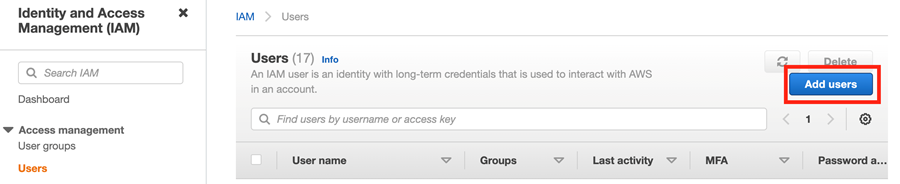
You will see the Add user screen that asks you to provide user details and select AWS access type.
Make up a descriptive user name. It helps to include what you’ll use this account to do, such as Globus or archive, in the name.
Leave the Provide user access to the AWS Management Console box unchecked.
Click Next.
Select the Attach policies directly tab.
Search for the name of the policy you created in the previous section.
Check the box to the left of the policy to apply it to your IAM user.
Then click Next: Review. The review page gives you an opportunity to review the permissions you have given to this user.
If everything looks correct, click Create User.
Create an Access Key#
Once you have created your IAM user, you need to create an access key to allow applications like Globus to have access to the bucket.
To create an access key,
Go the IAM user you created in the last section. Click Create Access Key in the Summary header.
AWS will present use cases and alternatives to using access keys. To create an access key, select Other, then click Next.
In the Description tag value field, enter a short description of what you will use this key for.
Click Create Access Key.
The key and secret will be displayed on the next page, and are also available to be downloaded in a CSV file. The credentials will only be displayed one time so make sure to save them from this page.
Storing this information in safe place, such as a password manager or AWS Secrets Manager .
These credentials can be used to Access Your Files on Amazon S3 with Globus and other use cases that require access keys.