
Installing Google Cloud Command Line Tools#
Google Cloud CLI#
The Google Cloud CLI (gcloud) is a secure command line tool used to interact with Google Cloud services inside an SDE environment. gsutil is a utility tool specifically for working with storage buckets.
These tools are used to:
Transfer data between SDE VMs and storage buckets (see Managing Buckets)
Create a connection between your managed endpoint (laptop) and a VM (see Working with VMs)
Access project resources from VMs without using the web-based Google Cloud Console, which is inaccessible from SDE VMs
Installation#
gcloud and gsutil are both already installed on any SDE VMs. They accessible through the Terminal once you are connected to a VM or through the SSH-in-browser connection run through your web browser from the Google Console on your managed device.
Some operations can also be run from the terminal on your managed device. To check to see if gcloud and gsutil are installed on your device, run the following commands in a Terminal (Mac) or Command Prompt (Windows) window:
gcloud --verison
The command should return output similar to:
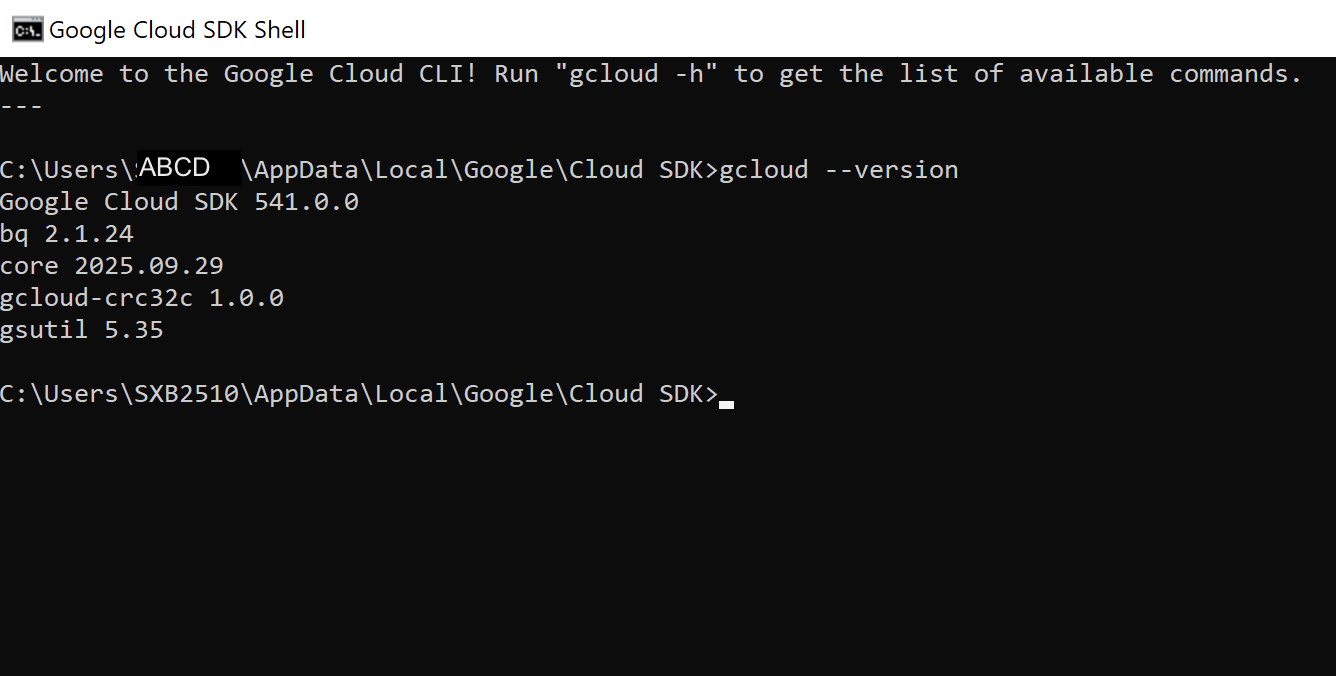
If your laptop or workstation does not have Google Cloud CLI installed, follow the instructions below.
To install Google Cloud CLI on your Mac, go to the Google Cloud SDK download page and follow the instructions there.
You will need to know whether your Mac has an Intel or Apple Silicon chip:
Click the Apple menu in the top-left corner of your screen.
Click About This Mac.
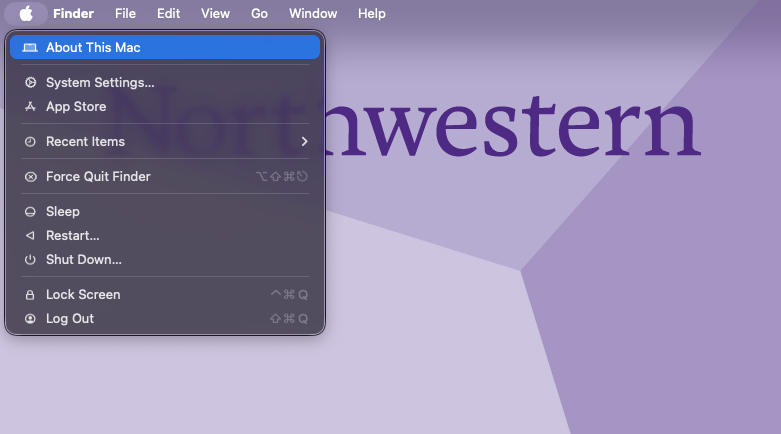
In the window that opens, look for the Chip or Processor field:
If it says Apple M1, M2, M3, M4, or another Apple chip, your Mac has an Apple Silicon chip.
If it says Intel, your Mac has an Intel processor.
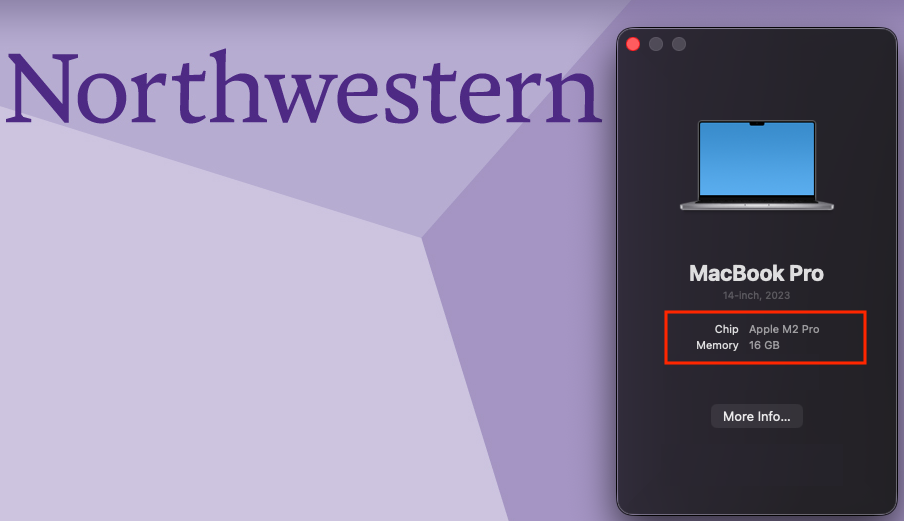
If you have:
Apple Silicon (M1/M2/M3/M4): choose the
macOS 64-bit (ARM64, Apple silicon)download option.Intel Mac: choose the
macOS 64-bit (x86_64)download option.
After the installation completes, you need to add the Google Cloud CLI bin folder to your PATH. This allows you to run commands such as gcloud from any folder in your Terminal without first navigating to the Google Cloud CLI installation folder.
Add Google Cloud CLI to your PATH
Step 1 — Open Terminal
Open Terminal on your Mac. Do not use SSH-in-browser for these steps. These commands configure your local Mac so that you can run gcloud commands from any folder.
Step 2 — Find the Google Cloud CLI installation folder
If you installed the Google Cloud CLI using the standard MacOS installer, it is usually installed in your home folder under google-cloud-sdk.
Run:
ls ~/google-cloud-sdk/bin/gcloud
If the installation is in the expected location, you should see:
/Users/your-username/google-cloud-sdk/bin/gcloud
The ~ means your home folder. The bin folder contains the gcloud command.
Step 3 — Add the bin folder to your PATH
Run:
echo 'export PATH="$HOME/google-cloud-sdk/bin:$PATH"' >> ~/.zshrc
This adds the Google Cloud CLI bin folder to your PATH permanently for your user account.
Step 4 — Reload your Terminal configuration
Run:
source ~/.zshrc
You do not need to repeat this command every time you open Terminal. New Terminal windows will automatically use the updated PATH.
Step 5 — Verify
Run:
gcloud --version
You should see output similar to:
Google Cloud SDK 5xx.x.x
bq 2.x.x
core 2.x.x
gcloud-crc32c 1.x.x
gsutil 5.x
The exact version numbers may be different.
Important
If gcloud --version works without first changing to the google-cloud-sdk/bin folder, your PATH is configured correctly. You can now run gcloud commands from any folder in your local Mac Terminal.
To install Google Cloud CLI on Windows:
Go to the Google Cloud SDK download page and follow the instructions there.
Run the installer and follow the setup steps.
During the installation, you will be prompted to “Select components to install”.
Select the “Cloud Tools for PowerShell” option as shown in the image below:
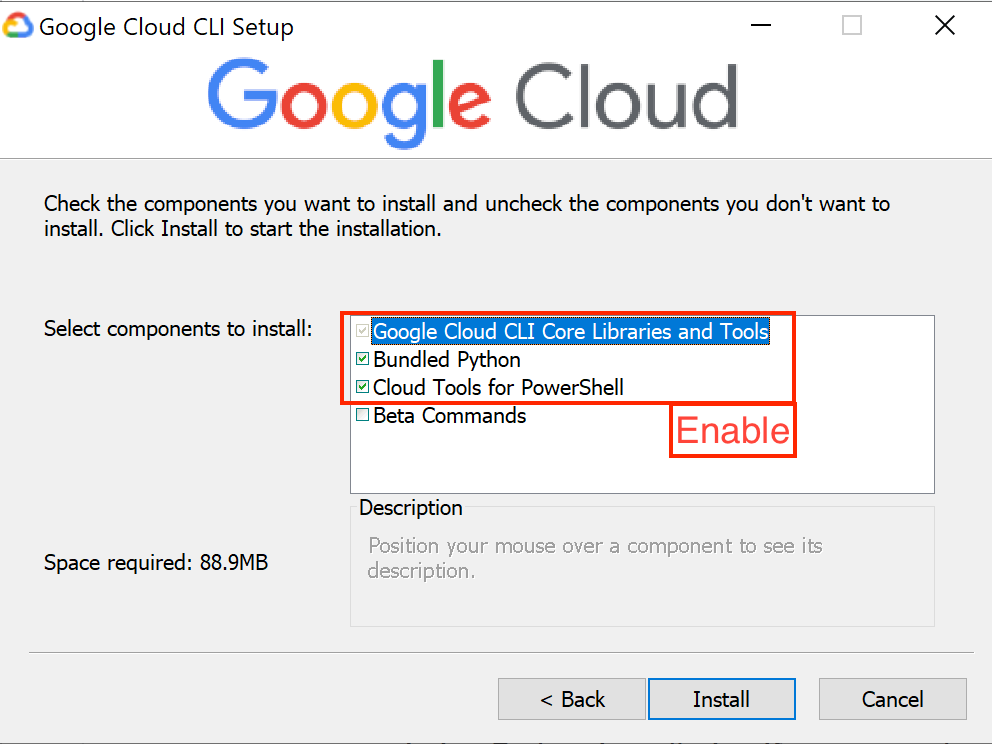
Once the installation completes, open Command Prompt or the Google CLI application and run:
gcloud --version
This confirms that the Google Cloud CLI was installed successfully.
Help setting up Google Cloud CLI
If you need help setting up Google Cloud CLI, requesting support.
Local Authentication#
If you’re running the Google Cloud CLI from your device (not from a VM in the SDE), you will need to authenticate before accessing any resources.
Run:
gcloud auth login
This will open a browser window for you to sign in to Google. Log in with your Northwestern account.
If you’re using gcloud or gsutil from a VM, you will already be authenticated.