
Nightingale Onboarding Process for Northwestern Researchers#
The onboarding steps for NU@Nightingale are as follows:
Confirm your Eligibility (all users)
Request Service (PI)
Consult with RCDS (all users)
Secure your Computer (all users)
Complete Training (all users)
Create an NCSA Account (all users)
Fill out Nightingale XRAS Form (PI)
Upload Training Certificates (all users)
Upload Proof of Disk Encryption (all users)
Please see each section below for more information.
Confirm your Eligibility#
Northwestern researchers with an active NetID who have passed a background check through their school or department are eligible to use this service; external collaborators are not.
Request Service#
Northwestern researchers who are planning to process and analyze sensitive data should visit the NU@Nightingale Service page to request a consultation with Research Computing and Data Services (RCDS). The consultation form creates a ticket in the Northwestern IT help system with all of the project information provided. Any questions throughout the process can be addressed as email responses to this ticket, or via email to nightingale@northwestern.edu .
Consult with RCDS#
After receiving your consultation request, RCDS will reach out to find a time to meet. This initial consultation will cover any questions our team has about the details you provided in the form. We will provide current rates for storage and compute on Nightingale, and if there is enough detail provided about the computational requirements of the project, we can make a more specific cost estimate. Please invite anyone who would need access to the data to this consultation. Different research team members might be able to provide more specific details about storage, compute, and software needs. If you have example jobs from similar analyses on Quest, please bring that information as well.
We will also cover the usage expectations for Nightingale, as well as some of the constraints of using this system that are important to consider for your workflow.
Secure your Computer#
Use Approved, Managed Devices Only
Users can only connect to Nightingale from Northwestern-owned and managed devices, not personal devices.
All devices that researchers use to connect to Nightingale, such as laptops and workstations, must be Northwestern-managed. More information on managed devices (also called managed endpoints) can be found here for Feinberg School of Medicine researchers or through Northwestern IT endpoint management for all other Northwestern schools.
Complete Training#
Researchers need to complete training specific to the types of sensitive data that are allowed on Nightingale.
Save Training Certificates
Save certificates as you complete the trainings as you will need to upload them to NCSA’s web platform once you have an NCSA account.
HIPAA Training#
Nightingale is a HIPAA-covered entity. This means that to access Nightingale, all users need to complete HIPAA training, regardless of whether their data is HIPAA regulated.
Feinberg researchers should complete this Data Security and Privacy Training to meet this requirement.
All other Northwestern researchers should complete HIPAA training through myHR Learn to meet this requirement.
Controlled Unclassified Information Training#
The NIST SP 800-171 standard that defines the security compliance of the Nightingale system is designed for the protection of controlled unclassified information (CUI). All Northwestern researchers working with data that is held to this security standard must also complete CUI-level training. This is provided through the Department of Defense .
Create an NCSA Account#
All Nightingale users must create an NCSA identity. To do so, go to the NCSA Identity login page and click “Register New User and Join.” Use your Northwestern NetID as your NCSA username.
You will also enroll in NCSA’s Duo multi-factor authentication, which is required to log in to Nightingale. This is separate from the Northwestern University Duo. If you do not use a mobile phone for authentication, reach out to nightingale@northwestern.edu to request a hardware token.
If you already have an NCSA identity and don’t know your password, go to NCSA Identity and Access Management and click “Reset.”
Fill out Nightingale XRAS Form#
After the steps above have been completed, the PI can initiate the creation of a project on Nightingale by filling out the Nightingale XRAS Form . Please let RCDS know when you have filled out this form so that we can communicate to NCSA that this project has been approved by Northwestern.
Once the XRAS form has been submitted, someone from the Nightingale team at NCSA will contact the PI, via email, within a few days. They may wish to schedule a meeting about the project if they have follow up questions about the information provided, especially if there are many pieces of software that will need to be installed for your research project. Should a meeting be necessary, NCSA will also invite RCDS staff in case we can provide any helpful technical details.
The PI of the new Nightingale project will receive multiple emails as individual technical components of the project are created, such as storage and software directories. The only one of these emails that requires any action is the one asking for confirmation of appropriate training and disk encryption.
Upload Training Certificates#
Both the PI and any others who need access to Nightingale will receive an email from NCSA staff prompting them to log in to an internal NCSA system to upload training certificates.
Follow the link provided in the email and log in with your NCSA identity. On this page you should see a “HIPAA Covered Entity Addition request”.
Under “Action: HIPAA Training” click the box that says “I need to take more than one training”.
Change the “Second Action” dropdown to “CUI Training”.
Click “Browse…” next to “Training Certificate” and upload your HIPAA training certificate.
Click “Browse…” next to “Second Training Certificate” and upload your CUI training certificate.
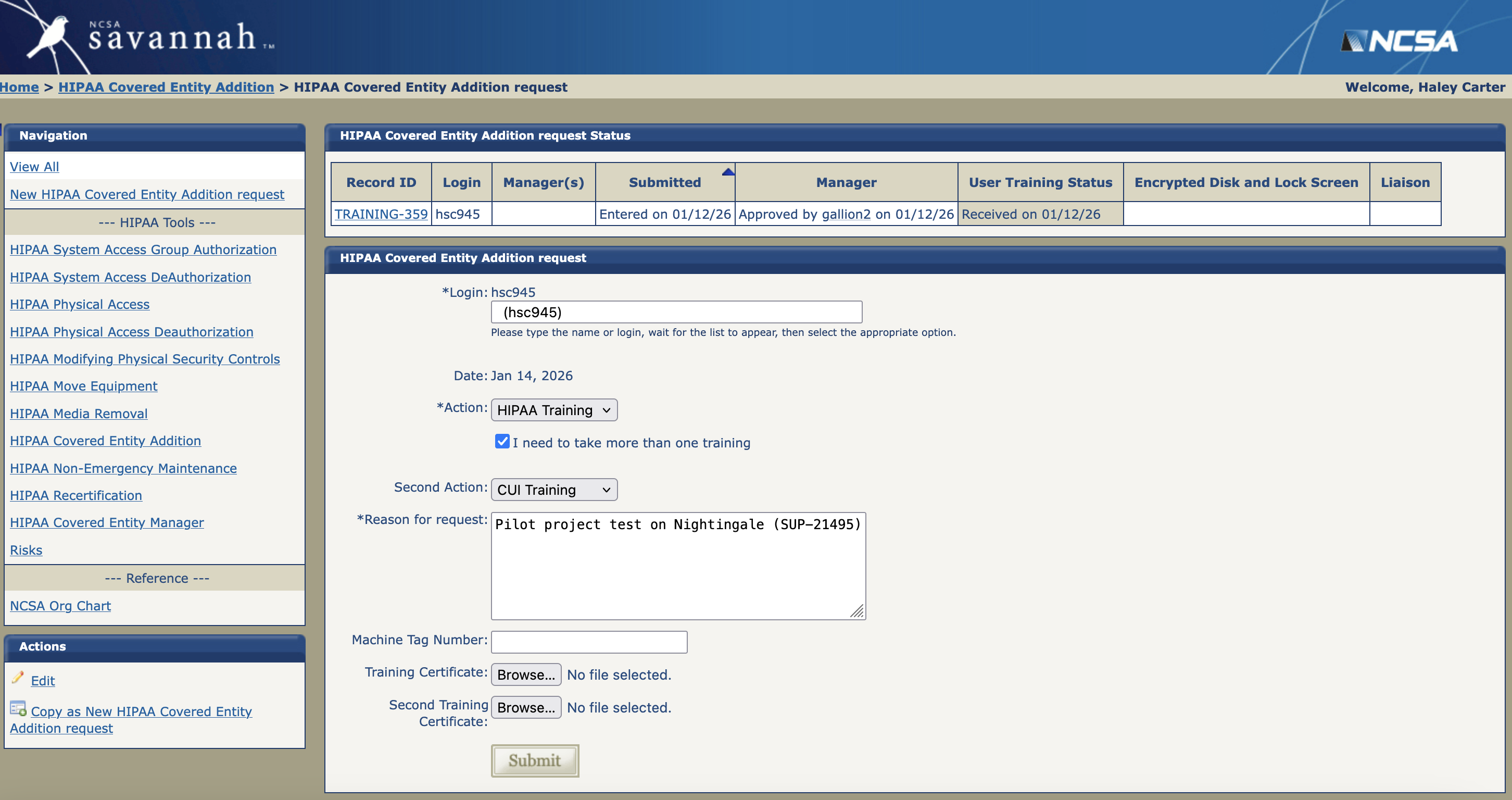
Note that Nightingale staff may have filled out the “Reason for Request” box with some text about the project. You do not need to edit or add anything to that box.
Upload Proof of Device Encryption#
Device encryption on Apple computers is done with FireVault. To document that this is turned on for your computer:
Open “System Settings”
Navigate to “Privacy & Security”
Scroll down to “FireVault”
Take a screenshot of the settings window showing that “FireVault” is toggled on
Device encryption on Windows computers is done with BitLocker. To document that this is turned on for your computer:
Open the “Start Menu”
Search for “Control Panel”
Locate and click on “BitLocker Drive Encryption” to see whether this status is on or off
Take a screenshot of the settings window showing that “BitLocker Drive Encryption” is on
Once you have a screenshot confirming device encryption, you can upload it to the same portal as the training certificates.
Follow the link provided in the email and log in with your NCSA identity. On this page you should see a “HIPAA Covered Entity Addition request”.
Scroll down the page to the “Files” section to upload a screenshot showing device encryption.
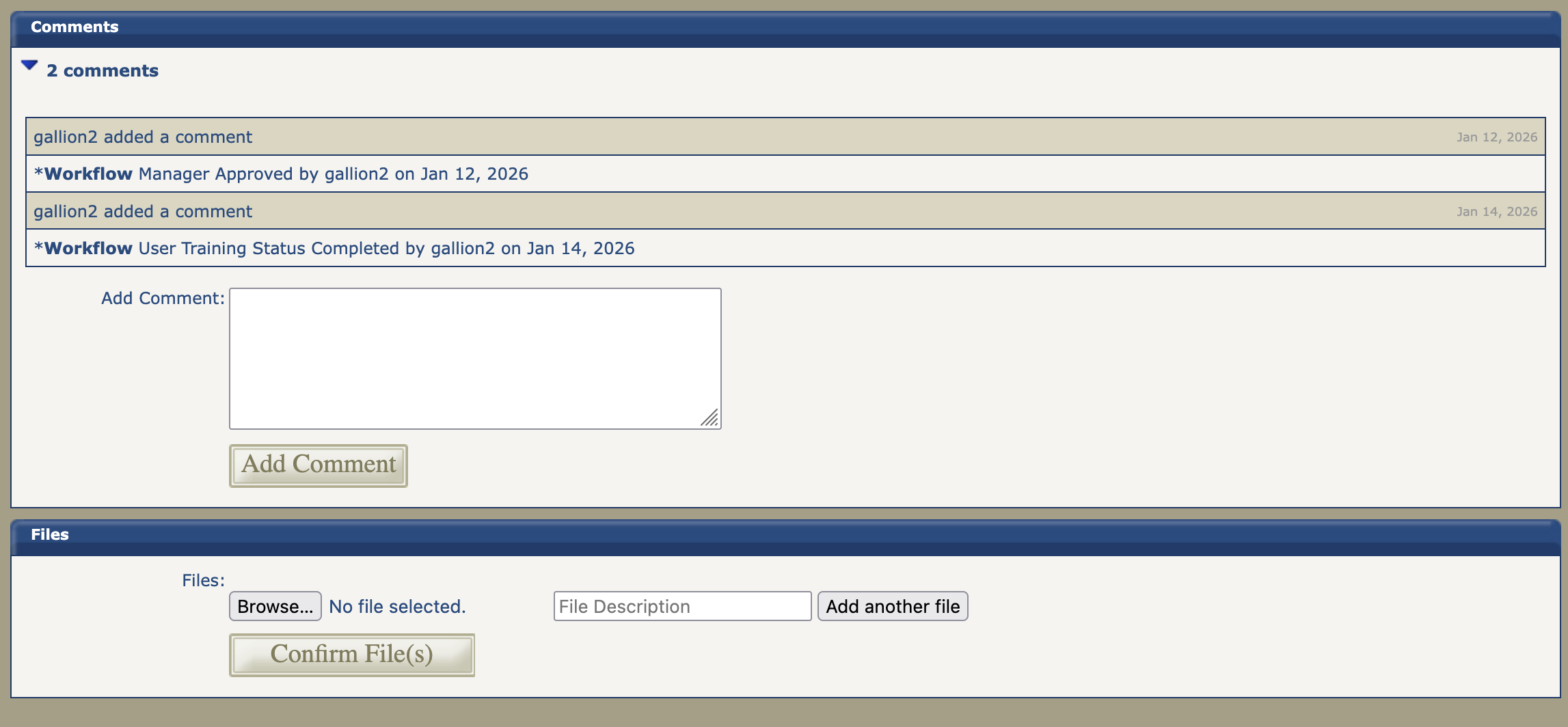
Click “Browse…” under “Files” and upload your encryption screenshot. You may change the file description to reflect what you are uploading.
Click “Confirm File(s)” to finish uploading them to the portal.
Reply to the email from Nightingale administration letting them know you have uploaded both training certificates and added a device encryption screenshot as a file.
Welcome Email#
After your Nightingale project is created, Nightingale administrators will notify you of the project name and locations of storage and software directory in a welcome email. Once you have received this email, you should be able to log in to Nightingale.
Adding Additional Users#
Only users who are approved to have access to the sensitive data in your project may be added to Nightingale. The project PI should list all research team members who need access to Nightingale when filling out the Nightingale XRAS form. If additional users need to be added later, the PI can email help@ncsa.illinois.edu with the user’s name, NCSA username, and the name of the project for them to be added to.
Yearly Renewal#
Users must renew their access to Nightingale yearly. The renewal deadline is November 1. Weekly reminder emails for all users start in October with instructions on renewing your access. This consists of retaking required data security trainings (HIPAA and CUI) and uploading the new certificates of completion in your user portal as described above.
Failure to Renew#
Failure to renew will result in removal of your access to the Nightingale system and the deletion of your home directory 30 days after your access has expired. If all users of a Nightingale project fail to renew their access, the project is deleted as well.
If you failed to renew your Nightingale access but your research project is still ongoing, please ask your project PI to email help@ncsa.illinois.edu to reinstate your access.