
Quest Resources#
Access to Quest’s compute and storage resources is managed through ColdFront. To use Quest, log in to ColdFront , create a Project, and request the compute or storage resources you need.
Compute resources allow you to submit jobs to run code on Quest’s compute nodes, and storage resources allow you to store files on Quest’s file system. Northwestern researchers can use free, shared General Access resources on Quest or purchase dedicated Priority Access resources.
If you have Project Sponsor, Project Lead, or Project Manager status for an active Project in ColdFront, you can add resources to a Project, give Project members access to resources, and upgrade resources.
To learn more about Quest’s hardware, see the technical specifications .
General Access Resources#
General Access resources on Quest are available to users for free and encompass the majority of Quest’s file system and compute node capacity. Read Quest’s technical specifications and file system documentation for more information on the system itself.
Each Project may have one General Access compute resource and one General Access storage resource.
General Access Compute#
A General Access compute resource grants users the ability to submit jobs through the scheduling system (Slurm) to the General Access partitions: short, normal, long, gengpu and genhimem. For more information on submitting to these partitions, please see the Slurm documentation. The compute resources available through General Access are shared by all General Access users and therefore occasionally have high wait times.
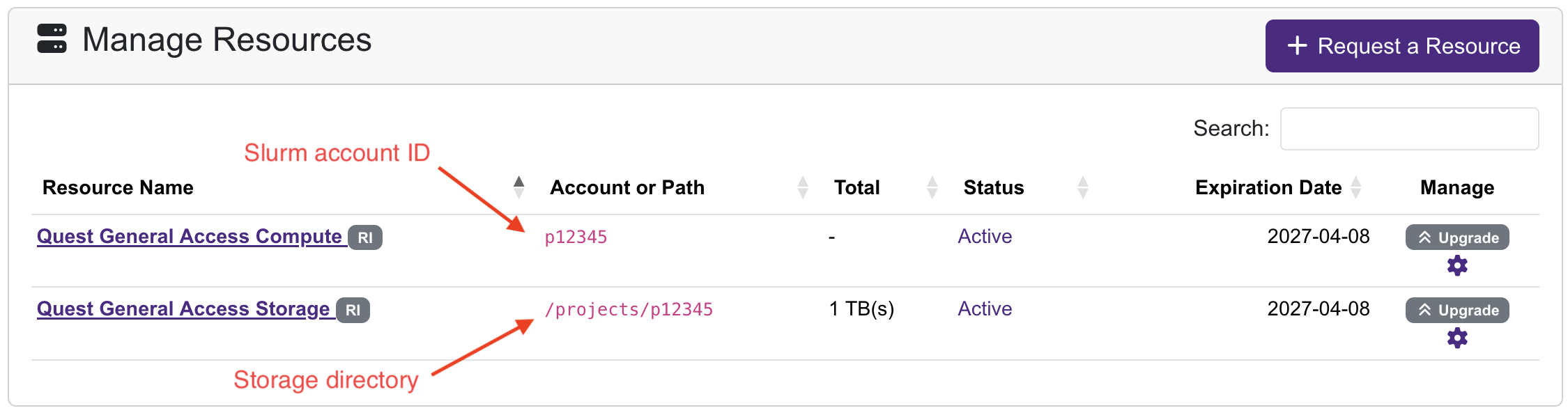
Once a compute resource is active, you can find the Slurm account ID for the resource in the Manage Resources section of the Project details page in ColdFront.
Access to compute resources is granted for one year; access can be renewed. When a compute resource expires, access to that resource is revoked for all users.
General Access Storage#
A General Access storage resource grants users the ability to store files in the projects space. Members of ColdFront Projects that have access to General Access storage resources can read and write to a subdirectory of the folder /projects which will have 1 TB of storage space.
Each Project receives a General Access account ID. The storage folder will be /projects/<account_id>. The account ID is listed in the Manage Resources section of the Project page.
Access to storage resources is granted for one year; access can be renewed. When a storage resource expires, access to the storage is revoked 30 days after expiration and any remaining data is removed 90 days after expiration.
General Access Tiers#
There are two tiers for General Access resources on Quest: Research I and Research II. All resources start at the Research I tier, which provides sufficient resources for most research work done on Quest. Users can upgrade a resource to the Research II tier if:
They plan to use more than 100,000 compute hours per year.
They need more than 1 TB of storage.
General Access storage cannot be expanded beyond 2 TB. If you require additional storage for your Project, please purchase storage.
Priority Access Resources#
Priority Access lets researchers purchase dedicated compute or storage on Quest. Purchased resources are added to an active Research Project in ColdFront and can be requested in addition to any General Access resources already in the Project. Project Sponsors, Project Leads, and Project Managers can submit purchase requests through ColdFront .
For pricing, see Purchasing Resources on Quest . Each purchase request requires a chartstring, which identifies the cost account to charge. If you are unsure of the correct chartstring, verify it with your Business Office.
Priority Access Compute#
Priority Access compute resources let you purchase access to dedicated CPU and GPU compute nodes on Quest. For details about available nodes types, please see the compute node technical specifications . CPU nodes share capacity with the General Access short partition; jobs on these nodes wait no longer than four hours to start. GPU nodes are reserved for the purchasing Project’s dedicated use. If the node type or configuration you are looking for is not listed, you can request a custom node purchase.
Access to compute nodes is purchased for a specified number of years after which access expires. When Priority Access compute resources expire at the end of the purchased access period, user access to those resources is revoked.
Custom Hardware#
GPU and high-memory nodes that are not in stock are custom node requests. When requesting a custom node, please provide as many hardware and technical details as possible so that we can investigate options and generate a price quote for the node. RCDS will contact you to discuss your requirements. Custom compute nodes take 3–6 months for ordering, fulfillment, and implementation.
Priority Access Storage#
Storage can be purchased by the terabyte for a specified number of years. The storage is set up in a directory in the projects space. A Project can have both General Access and Priority Access storage resources, but they cannot be directly combined; each resource type will have its own directory and account identifier.
When Priority Access storage expires, the Project’s storage directory quota is reduced by the amount of storage that is expiring. For example, if you’ve made multiple storage purchases totaling 10 TB, and a purchase for 2 TB expires, the /projects/<account_id> directory quota will be set to 8 TB. If the total amount of data in that directory exceeds the new quota, attempts to write new files to the directory will result in disk full errors. The storage in the directory must be reduced below the new quota to continue to use the storage directory. If the entirety of your Priority Access storage quota expires, the quota will be reduced to 0 TB and any remaining data will be deleted 90 days after expiration.
Classroom Resources#
Classroom resources on Quest are available to support both official Northwestern courses and training events or workshops sponsored by Northwestern faculty or staff.
Project Sponsors, Leads, and Managers are responsible for adding and removing students from the classroom resources. Please request resources at least one week in advance to ensure that the resources are active in time for the class or workshop. Students will be notified when they have been added to the resources.
Sponsors, Leads, and Managers are also responsible for teaching students how to use the Quest resources necessary for the class or workshop. This includes logging in, transferring files to and from Quest, use of software, package installation and management, and, if needed, how to submit jobs. Sponsors, Leads, and Managers are responsible for fielding initial questions or issues. If you encounter an error with the system, please submit a help request to quest-help@northwestern.edu . Support is available to the instructor at no cost. Teaching modules for classes may be available based on availability.
Classroom Compute#
A Classroom compute resource grants users the ability to submit Slurm jobs to the General Access partitions, such as short, normal, long, and gengpu. For more information on submitting to these partitions, please see the Slurm documentation.
Access to Classroom compute resources is granted for 16 weeks; access can be renewed.
Classroom Storage#
A Classroom storage resource grants users the ability to store files in the projects space. The storage directory has a 2 TB quota that is shared by all users.
Storage resources are allocated for 1 year and can be renewed. When a storage resource expires, access to the storage is revoked 30 days after expiration and any remaining data is removed 90 days after expiration.
Summary Table#
Resource Name |
Project Type |
Cost |
Storage Size |
Duration |
|---|---|---|---|---|
General Access Compute |
Research |
No |
- |
1 year, renewable |
General Access Storage |
Research |
No |
1-2 TB |
1 year, renewable |
Priority Access Compute |
Research |
Yes |
- |
1-5 years |
Priority Access Storage |
Research |
Yes |
As needed |
1-5 years |
Classroom Compute |
Classroom |
No |
- |
16 weeks, renewable |
Classroom Storage |
Classroom |
No |
2 TB |
1 year, renewable |
Requesting and Managing Resources#
Resources are requested and managed through ColdFront . Additional information on the resource request process can be found under Resource Management.
While most workflows require access to both compute and storage resources on Quest, we encourage you to only add resources that you need for your Project.
How to Request Resources#
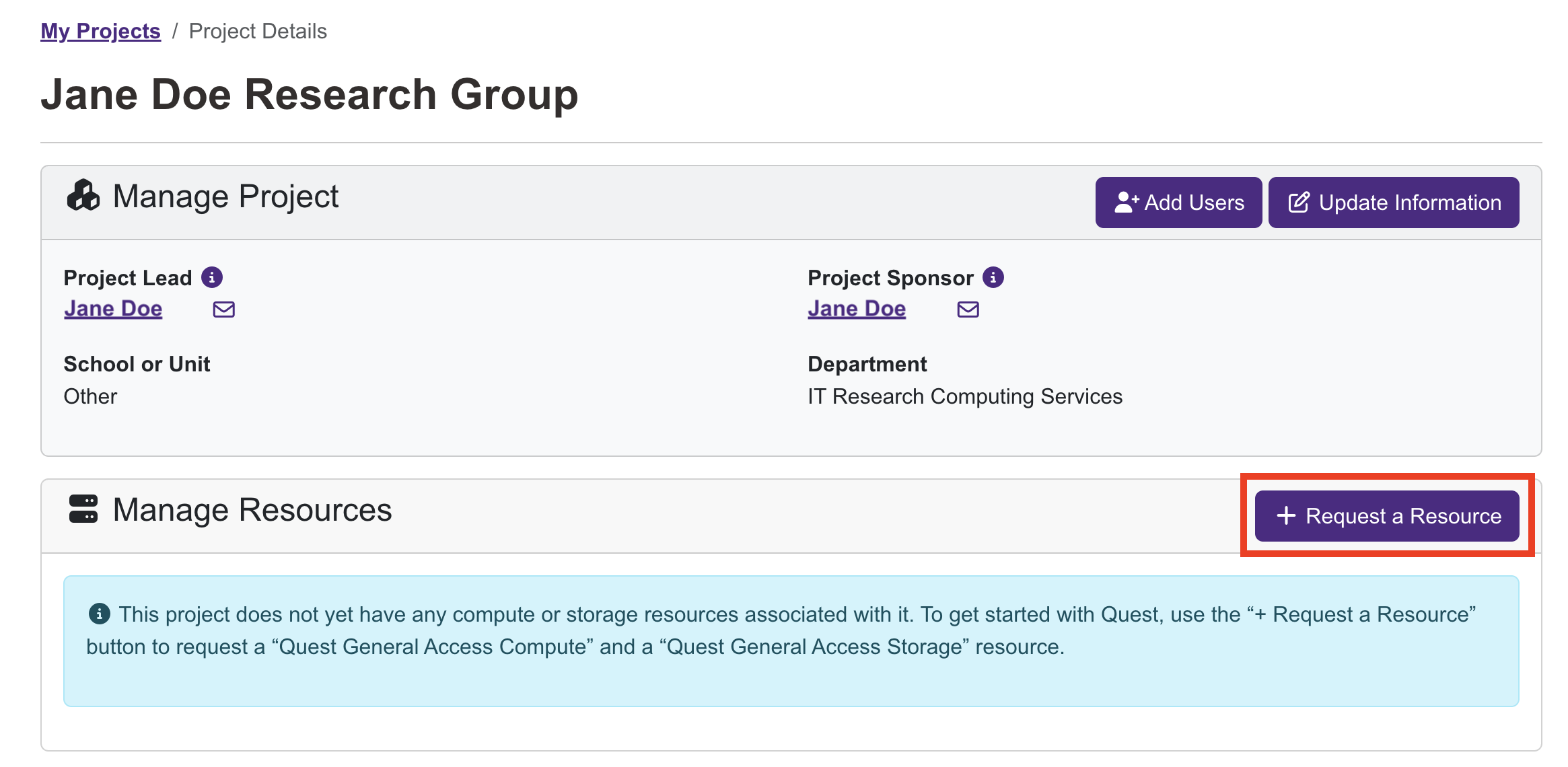
To start a resource request, in the “Manage Resources” section for the Project you’re adding resources to, click the purple “+ Request a Resource” button.
General Access and Priority Access resources require additional information as part of the request process; see the details below. Classroom resources do not require additional information beyond what was provided for the Classroom Project.
General Access Compute
On the resource request page, under “Access Level” select “Quest General Access”
Under “Select a resource” select “Quest General Access Compute”
Complete the information fields required for General Access Compute:
Chartstring for your research’s funding support
If there is a chartstring associated with this research, please provide it. It will not be charged for General Access resources, but it does provide critical information about how Quest resources are used. If there is legitimately no chartstring associated with the research, enter N/A.
How will Quest access support your research?
Provide a general overview of how you plan to utilize Quest’s compute resources for your Project. This should include details of the data included in your Project as well as your analysis plan.
Read the Terms and Conditions.
Optional: if there are regular users with access to your Project, they will be listed so that you can choose to grant them access to this resource when it becomes active.
Click the purple “Submit” button to submit your request. Clicking “Submit” constitutes agreement with the Terms and Conditions.
General Access Storage
On the resource request page, under “Access Level” select “Quest General Access”
Under “Select a resource” select “Quest General Access Storage”
Complete the information fields required for General Access Storage:
What computing resources will you be using with this storage?
Check the appropriate box(es). Storage on Quest is only for storing data being analyzed on Quest.
Chartstring for your research’s funding support
If there is a chartstring associated with this research, please provide it. It will not be charged for General Access resources, but it does provide critical information about how Quest resources are used. If there is legitimately no chartstring associated with the research, enter N/A.
How will Quest access support your research?
Provide a general overview of how you plan to utilize Quest’s compute resources for your Project. This should include details of the data included in your Project as well as your analysis plan.
Read the Terms and Conditions.
Optional: if there are regular users with access to your Project, they will be listed so that you can choose to grant them access to this resource when it becomes active.
Click the purple “Submit” button to submit your request. Clicking “Submit” constitutes agreement with the Terms and Conditions.
Priority Access Compute
On the resource request page, under “Access Level” select “Quest Priority Access”
Under “Select a resource” select the compute node type you would like to purchase.
Complete the information fields required for Priority Access Compute:
Number of Nodes: How many nodes are you purchasing?
Funding Source: Select the funding source you are using from the dropdown menu.
Chartstring: Provide the chartstring to charge the node purchase to.
Budget Justification: Provide a statement of how this purchase will support the funded research.
Click the purple “Submit” button to submit your request.
If you want to purchase multiple types of nodes, submit separate resource requests.
Priority Access Compute — Custom Node
On the resource request page, under “Access Level” select “Quest Priority Access”
Under “Select a resource” select “Quest Custom Node Purchase.”
Provide a description of the node requirements for your request.
For high-memory nodes, provide the amount of memory.
For GPU nodes, provide the model, number of GPU cards, and vRAM requirements.
(Optional) Upload a document outlining technical specifications requested if you have one.
Click the purple “Submit” button to submit your request.
RCDS will review your request and follow up via email about your purchase.
Priority Access Storage
On the resource request page, under “Access Level” select “Quest Priority Access.”
Under “Select a resource” select “Quest Storage Purchase.”
Complete the information fields required for Priority Access Storage:
Number of Terabytes (TB): How much storage are you purchasing?
Number of Years: Storage on Quest may be purchased for 1 to 4 years.
Funding Source: Select the funding source you are using from the dropdown menu.
Chartstring: Provide the chartstring to charge the node purchase to.
Budget Justification: Provide a statement of how this purchase will support the funded research.
Click the purple “Submit” button to submit your request.
How to Upgrade General Access Resources#
To request an upgrade for an active General Access compute or storage resource, follow the steps below.
Compute
Navigate to the ColdFront Project that contains the resource you would like to upgrade.
In the “Manage Resources” section, click on the gray “Upgrade” button in the “Manage” column of the Quest General Access Compute resource you would like to upgrade.
Fill out the following sections of the upgrade request:
Justification: a quick overview of why the additional resources are needed by the research.
Overview of Computational Method: a summary of computational methods being used.
Summary of Computational Resources: an estimation of the number of compute hours required by your research.
Click “Submit.”
Your request will be reviewed by RCDS. When the upgraded resources are available, an email notification will be sent. If the request is denied, a clarification email will be sent requesting additional information. Denied requests require a new submission for the upgrade.
Storage
Navigate to the ColdFront Project that contains the General Access storage resources you are upgrading.
In the “Manage Resources” section, click on the gray “Upgrade” button in the “Manage” column for the Quest General Access storage resource that you want to upgrade.
Write a brief justification of why you need the additional storage.
Click “Submit.”
An email notification will be sent when the upgraded resources are available. If the request is denied, a clarification email will be sent requesting additional information. Denied requests require a new submission for the upgrade.
How to Renew Resources#
Only General Access and Classroom resources can be renewed; Priority Access resources must be replaced with a new purchase.
If the expiring Quest resources have enabled published research, please add the publication details to the “Publications” section on the bottom of the Project page in ColdFront at the time of renewing any resources. This is done by clicking the purple “+ Add Publication” button on the right side of the section header, filling out the form fields on the resulting page, and clicking “+ Add Publication” under those form fields.
Then request a resource renewal:
In the “Manage Resources” section, click the yellow “Click to renew” or the red “Expired - Click to renew” button in the “Manage” column for the resource you want to renew.
The renewal form will populate with the information from the original resource request. Update the justification (Research Projects) or course description (Classroom Projects) as needed.
Click “Submit” to submit your renewal request and agree to the Terms and Conditions of Quest usage.
An email notification will be sent when the request has been processed. If the request is denied, a clarification email will be sent requesting additional information. Denied requests require a new submission for the renewal.
If you are renewing before the expiration date, there will be no lapse in access to the resource. If the resource has already expired, it will be reactivated within 24 hours of the renewal request being approved.